Guide · iPhone
How to get a YouTube transcript on iPhone
YouTube can show a transcript on your phone, but only when the video has captions, and it doesn't keep the text for you. Here are three ways to get a YouTube transcript on iPhone, what each one can't do, and what to use when a video has no captions at all.
Free to try. iPhone and iPad, iOS 26.
- 0:01Share the videoto MarkerShelf
- 0:02Transcripttap Generate
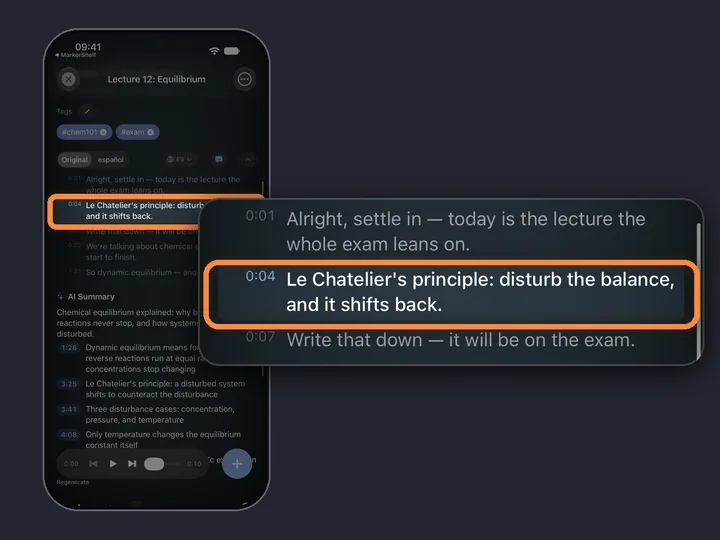
- 0:03Read alongtap a line to jump
- 0:04Keep itsaved with the video
Short answer: In the YouTube app, open the video, tap the description, scroll down and tap Show transcript. That only works when the video has captions, and there is no button to copy or save the text. For a video without captions, share it to MarkerShelf and tap Transcript — Generate: it uses the captions when they exist and speech-to-text when they don't.
 By App Labs, the makers of MarkerShelfUpdated
MarkerShelf: a transcript even when there are no captions
MarkerShelf is an iPhone and iPad app for saving the important moments of videos, and it makes transcripts too. For YouTube it uses the captions when the video has them and switches to speech-to-text when it doesn't, so lectures, talks and interviews without subtitles still get text with timestamps.
0:01Step 1 of 4
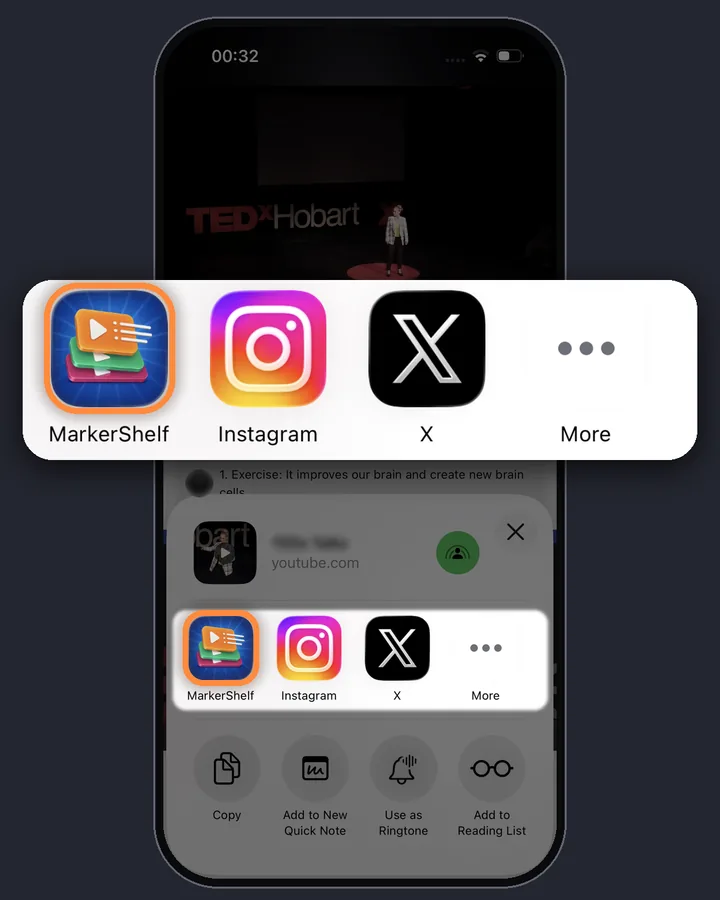
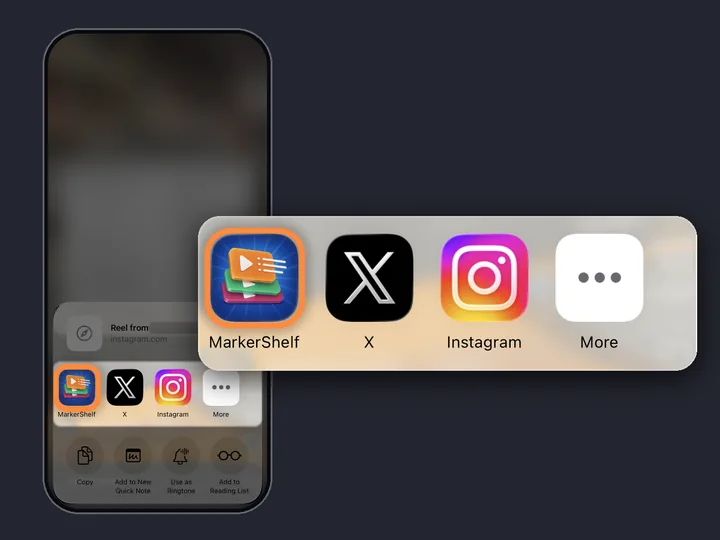
Send the video to MarkerShelf
In the YouTube app, tap Share and pick MarkerShelf in the row of apps (tap More if it isn't there yet). Or copy the link, open MarkerShelf, tap + in your Library and paste it in the Add Video sheet.
0:02Step 2 of 4
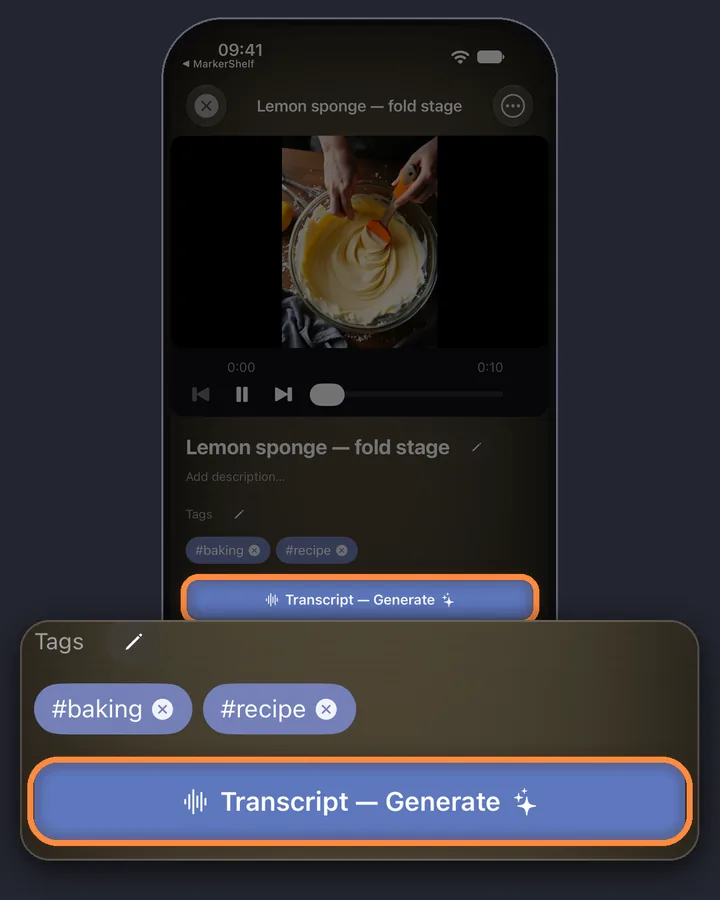
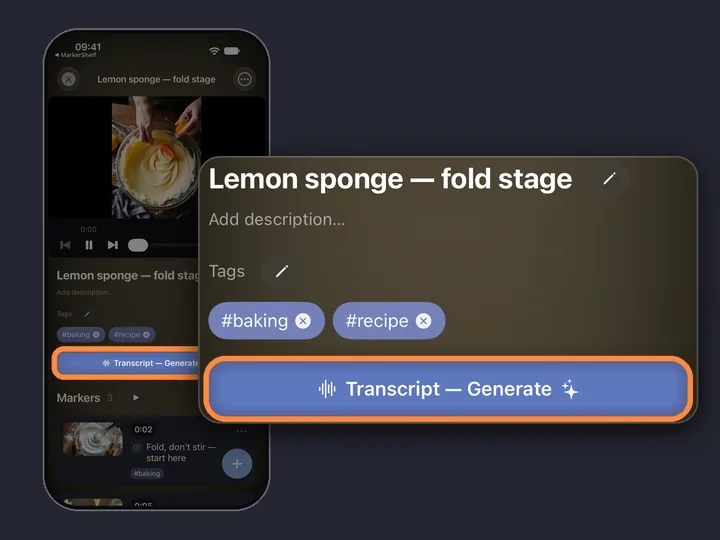
Tap Transcript — Generate
Open the video in MarkerShelf and tap Transcript — Generate, under the video's title and tags. Videos up to 3 hours work; a long video takes a little longer.
0:03Step 3 of 4
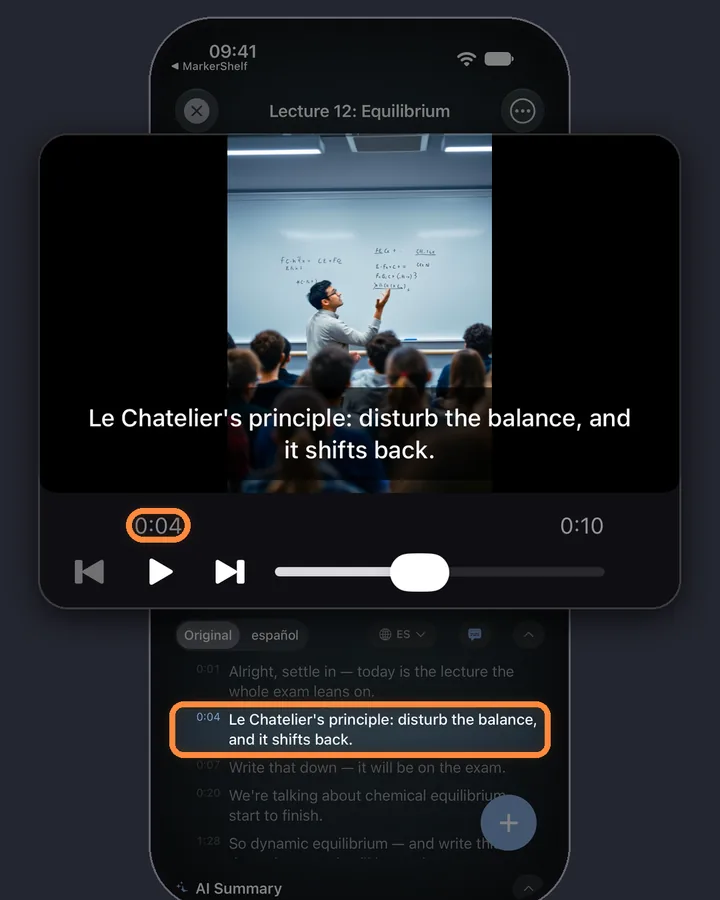
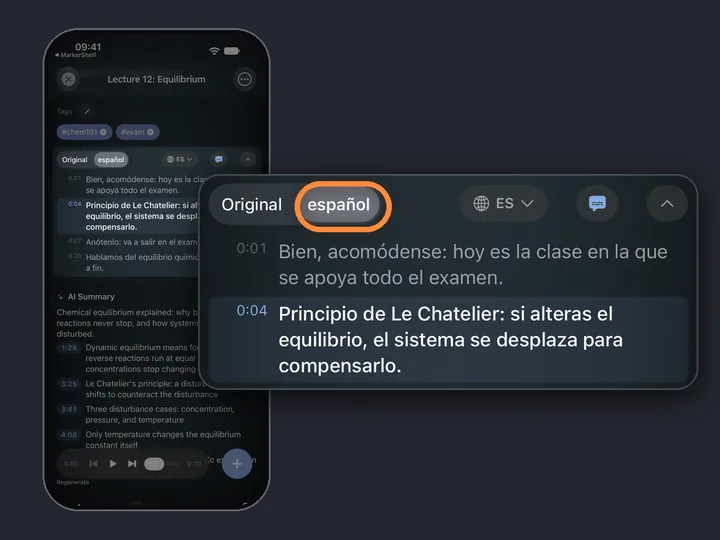
Read along and tap a line to jump
Every line has its timestamp, and the line being spoken is highlighted while the video plays. Tap a line and the video jumps there.
0:04Step 4 of 4
Keep the text with the video
The transcript stays saved with the video, next to your markers, so you never have to fetch it again. Open the video and it's there.
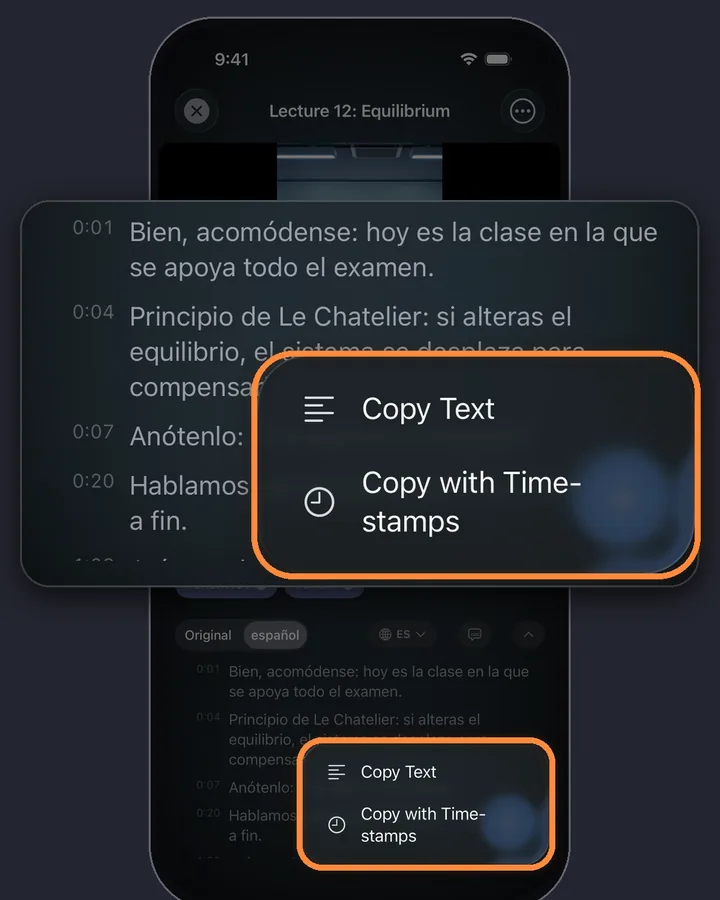
With Pro, the Copy Transcript menu copies the plain text or the text with timestamps, ready to paste into Notes or a document.
MarkerShelf for iPhone and iPad
Never lose a moment in a video again.
Read YouTube videos as text, keep every transcript with its video, and tap any line to jump back to it.
Free to start. No account needed.

Three ways at a glance
The YouTube app
- Free and already on your phone
- Needs captions
- Read only: no copy button, nothing saved
A transcript website
- Free, you paste a link
- Usually reads the existing captions only
- Works better on a computer than on a phone
MarkerShelf
- Works with or without captions
- Keeps every transcript with its video
- Free preview; the full transcript is Pro
Way 1: the YouTube app (“Show transcript”)
This is the quickest option when you only want to read along. The limits: the transcript only appears when the video has captions (uploaded by the creator or generated by YouTube), there is no button to copy or save it, and nothing is kept, so next time you start from scratch. If there is no Transcript section, the video usually has no captions, and you need speech-to-text instead.
- Open the video in the YouTube app.
- Tap the title or the description to expand it.
- Scroll down to the Transcript section and tap Show transcript.
- Tap any line to jump to that point in the video.
Way 2: a free transcript website
Search for “YouTube transcript” and you'll find plenty of free sites. Copy the video link in the YouTube app (Share, then Copy link), paste it on the site, and the text appears. On a computer this is often the fastest way to grab the text of one video.
On an iPhone it's more fiddly: small pages, ads, and a long block of text you have to select by hand. Many of these sites read the captions YouTube already has, so videos without captions give you nothing or an error. And they don't remember anything: once you close the tab, the text is no longer connected to the video.
TikTok, Instagram and other platforms
- TikTok
- X
- Photos
- Files
The same steps work for TikTok, Instagram, Facebook, X and LinkedIn, and for your own videos from Photos or Files. TikTok, Instagram and Facebook videos are always transcribed with speech-to-text; X and LinkedIn use captions when the post has them. Videos from Photos or Files are transcribed on your iPhone. Details: TikTok transcripts and Instagram Reel transcripts.
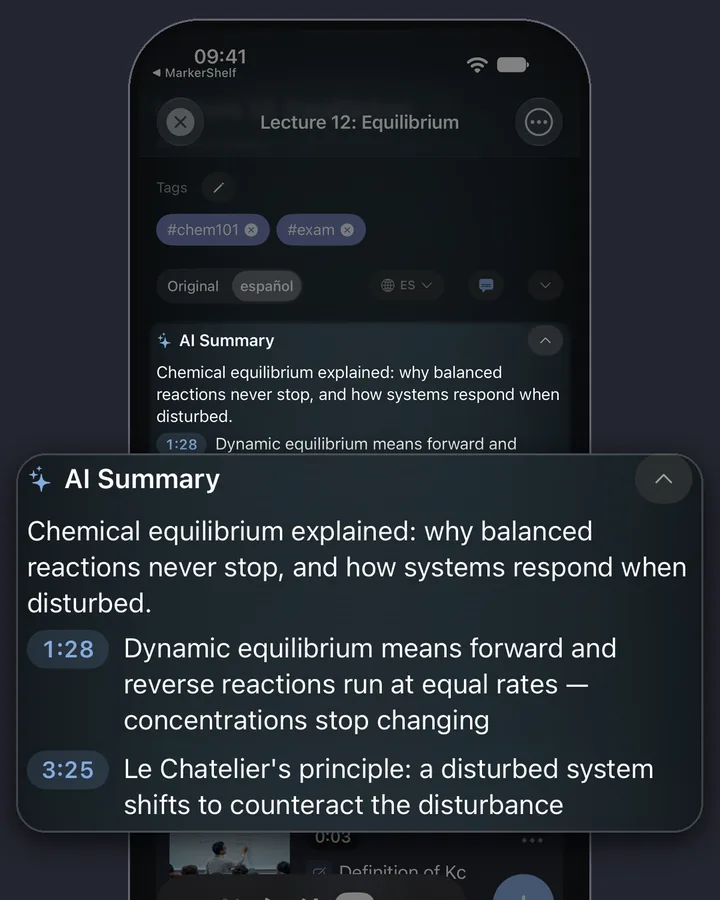
What else: with Pro you can also translate the transcript or get an AI summary of it.
Limits worth knowing
Video length
Videos up to 3 hours (180 minutes).
Who can see it
Public videos only: no live streams and no posts that need a login.
Video files
MarkerShelf doesn't save video files. Online videos play from YouTube inside the app.
Transcript files
Transcripts aren't exported as files. Exports contain your markers, with their timestamps and notes.
Pricing
Start free. Upgrade when the free limits get in your way.
Free
$0
No account needed
- 10 videos
- 3 markers per video
- 5 tags
- 1 collection
- Search titles, notes & tags
- Transcript, summary & translation previews
Marker
$2.99/mo
Unlimited bookmarking
- Unlimited videos
- Unlimited point markers
- Unlimited tags
- 1 collection
- Text export
- 3 range markers per video
Pro
Annual
Save 40%$4.17/mo
$83.88 $49.99/yr billed annually
or $6.99/mo monthly (no trial)
- Everything in Marker
- Unlimited range markers, loops & collections
- Full transcripts, AI summary, word search & translation
- PDF, Markdown & text export
App Store prices for United States, checked Oct 20, 2026.
Questions
About YouTube transcripts in MarkerShelf.
Can I copy a YouTube transcript on iPhone?
Not in the YouTube app: it shows the transcript but has no copy button. On a transcript website you can select the text by hand. In MarkerShelf, Pro has a Copy Transcript menu that copies the whole text, with or without timestamps.
How do I get a transcript when the video has no captions?
You need speech-to-text. YouTube's own transcript and most transcript websites only read captions, so they come up empty. MarkerShelf switches to speech-to-text automatically when a YouTube video has no captions.
Is getting a YouTube transcript on iPhone free?
The YouTube app's transcript is free when captions exist. In MarkerShelf the Free plan shows the first 30 seconds of each transcript for up to 10 videos; the full transcript needs Pro: $6.99 a month, or $49.99 a year with a 7-day free trial.
Can I save the transcript as a PDF?
MarkerShelf doesn't export transcripts as files. With Pro, the Copy Transcript menu copies the text so you can paste it into a document and save that as a PDF.
Does it work for long videos?
Yes, for videos up to 3 hours. A long video takes a little longer to transcribe.
Get the transcript of your next video.
Get the transcript of YouTube, TikTok, Instagram, Facebook, X and LinkedIn videos, with or without captions.