Guide · Translate YouTube videos on iPhone
Translate a YouTube video into your language on iPhone
Found a great video in a language you don't speak well? You can read it in yours: the captions over the video, the full transcript and the AI summary. The speaker's voice stays the same. This is reading along, not dubbing.
Translation is part of Pro. Free to try on iPhone and iPad.
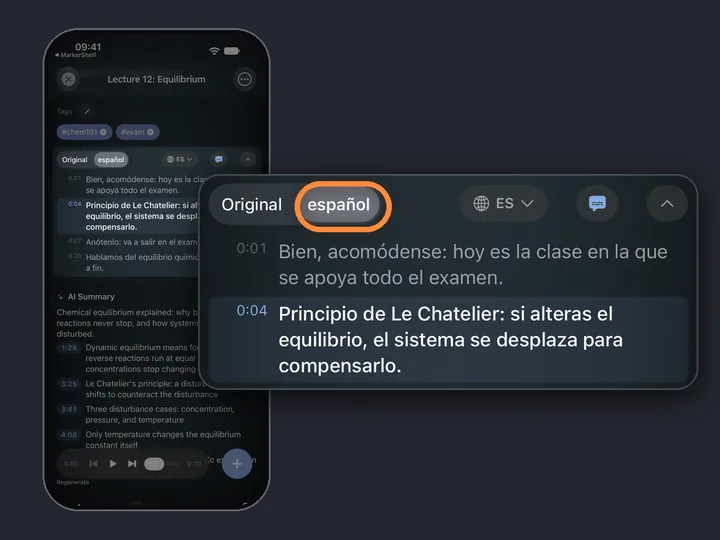
- 0:01Add the videoto MarkerShelf
- 0:02Transcripttap Generate
- 0:03Tap the globepick a language
- 0:04Captionsover the video
- 0:05Summaryin your language
Short answer: To translate a YouTube video on iPhone, share it to MarkerShelf and tap Transcript — Generate. Then tap the globe above the transcript and pick your language. The transcript, the captions over the video and the summary switch to it, and one tap switches back to the original. Translation comes with Pro. The audio is not dubbed.
 By App Labs, the makers of MarkerShelfUpdated
Translate a YouTube video with MarkerShelf, step by step
Five steps on your iPhone. Translation is part of Pro; the free plan translates a short preview.
- Pro
0:01Step 1 of 5
Add the video
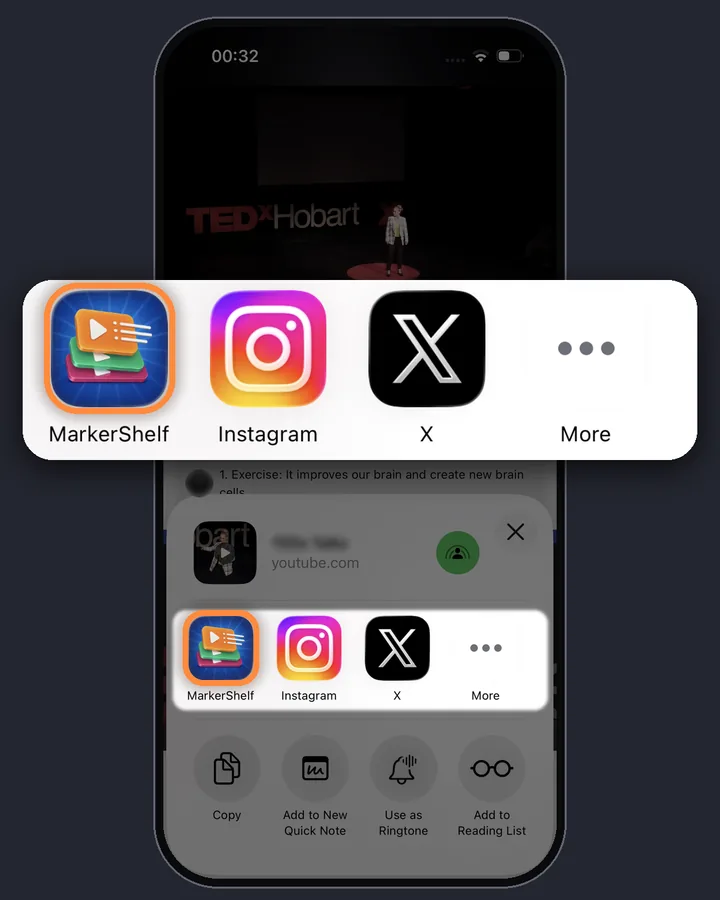
In the YouTube app, tap Share and pick MarkerShelf. Or copy the link, open MarkerShelf, tap + in your Library and paste it in the Add Video sheet.
0:02Step 2 of 5
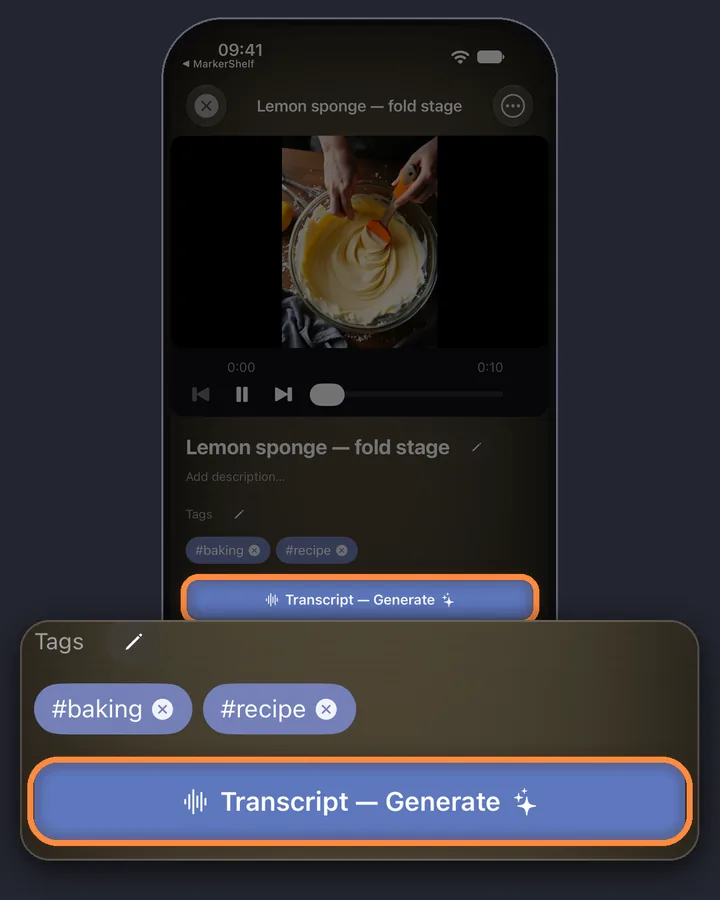
Tap Transcript — Generate
For YouTube, MarkerShelf uses the video's own captions when it has them and makes the transcript from the speech when it doesn't. So you can translate a YouTube video without CC, too.
0:03Step 3 of 5
Tap the globe and pick your language
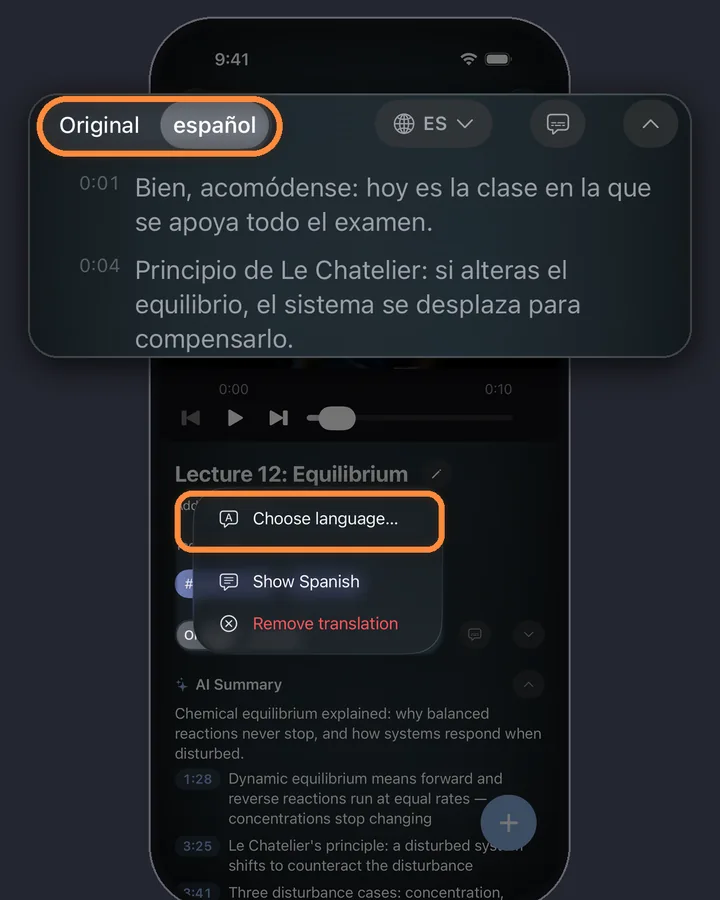
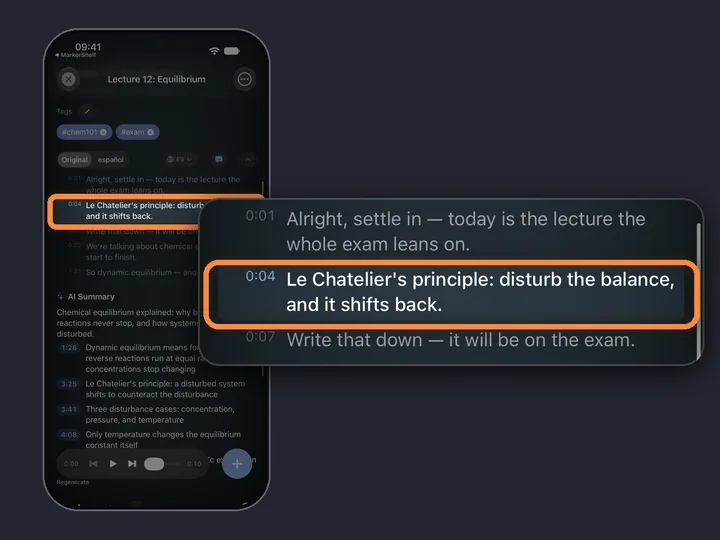
Tap the globe above the transcript, then tap Choose language… and pick your language, for example Spanish. If the menu also shows Translate to and your language, you can tap that instead. The transcript appears in that language with the same timestamps, and an Original / translation switch sits above it.
One tap on the switch flips the whole transcript between the original and your language.
0:04Step 4 of 5
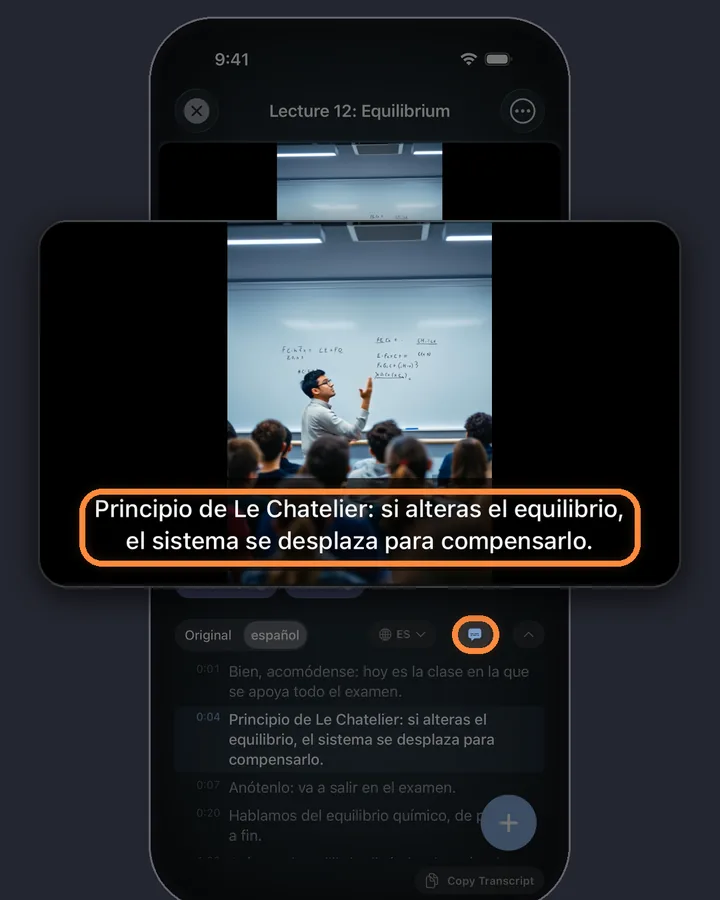
Turn on captions over the video
Tap the captions button next to the globe. The caption line follows the speech while the video plays, in the language you picked. To move it, long-press it, then drag it anywhere on the video.
0:05Step 5 of 5
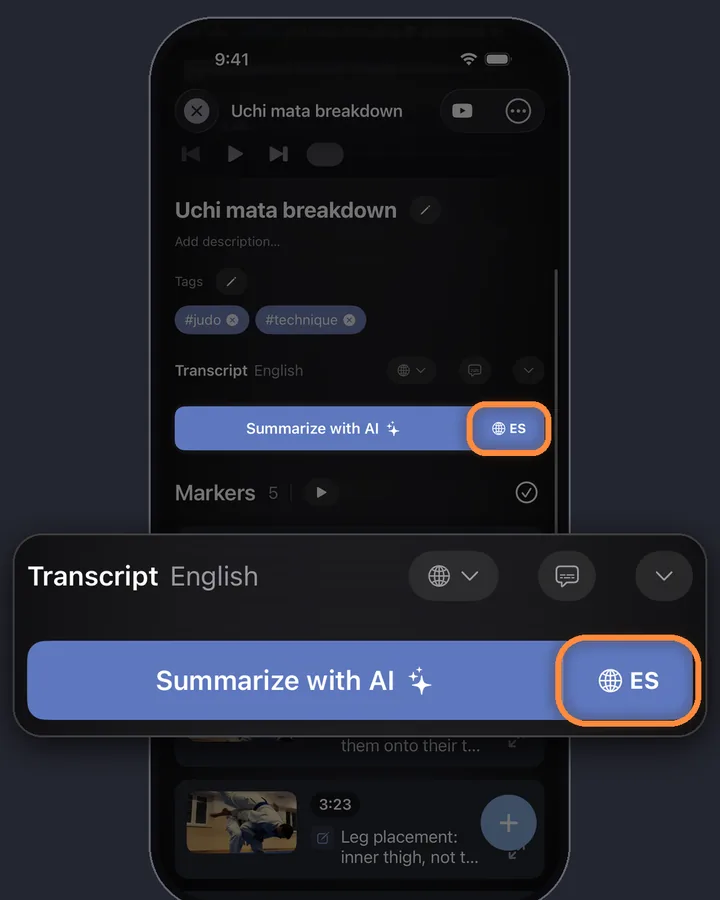
Read the summary in your language
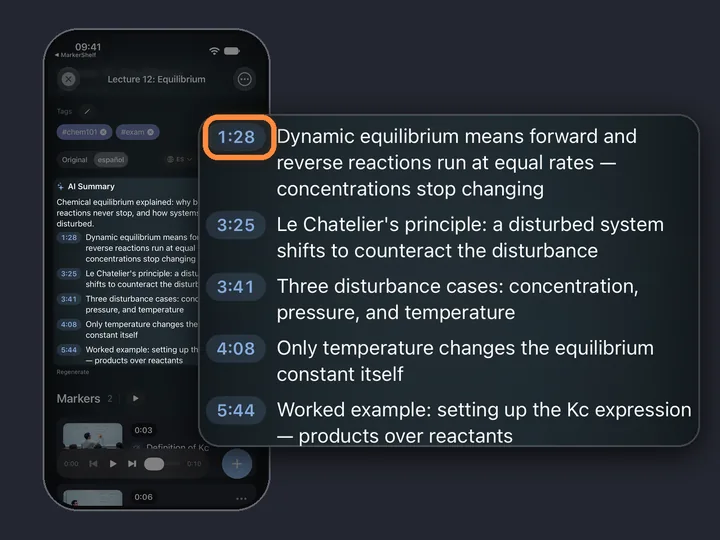
The Summarize with AI button has a globe of its own: pick your language there, then tap the button for a one-sentence TL;DR and 3 to 6 key points with timestamps, written in that language.
MarkerShelf for iPhone and iPad
Never lose a moment in a video again.
Read captions, transcripts and AI summaries in your language, and switch back to the original in one tap.
Free to start. No account needed.

What “translate” means here
Translated text
The transcript, the captions over the video and the AI summary, in your language.
Not dubbing
The audio and the speaker's voice stay in the original language. If you want to hear a voice in your language, you need a dubbing app. MarkerShelf is for reading along.
Not a new video
The captions are shown in MarkerShelf's player. Nothing is added to the video itself, and there is no caption file to export.
The free option: YouTube's own auto-translate
- Free
Turn it on in the YouTube app
If a video already has captions, YouTube can translate them: tap the video, tap the gear (Settings), then Captions, and choose Auto-translate and your language. Menu names can differ between YouTube app versions. It is free, and for one video it may be all you need.
Where it stops
It needs captions to start from, so a video without CC has nothing to translate, and you get subtitles only, with no transcript to read at your own pace.
For language learners: switch, don't replace
The switch is per video. Watch with the original captions, and when you lose the thread, flip the transcript to your language, read the line, then flip back. Tap any line to replay it from that second.
For full study notes from a lecture in another language, see lecture video notes.
Not only YouTube
Translation works on every video you have a transcript for, including TikTok, Instagram, Facebook, X, LinkedIn and your own videos. See how to transcribe a TikTok video.
- YouTube
- TikTok
- X
- Photos
- Files
Languages you can translate into
You can translate into any of these:
- Arabic
- Catalan
- Chinese (Simplified)
- Chinese (Traditional)
- Czech
- Danish
- Dutch
- English
- Finnish
- French
- German
- Greek
- Hebrew
- Hindi
- Indonesian
- Italian
- Japanese
- Korean
- Malay
- Norwegian
- Polish
- Portuguese
- Romanian
- Russian
- Slovak
- Spanish
- Swedish
- Thai
- Turkish
- Ukrainian
- Vietnamese
Pricing
Start free. Upgrade when the free limits get in your way.
Free
$0
No account needed
- 10 videos
- 3 markers per video
- 5 tags
- 1 collection
- Search titles, notes & tags
- Transcript, summary & translation previews
Marker
$2.99/mo
Unlimited bookmarking
- Unlimited videos
- Unlimited point markers
- Unlimited tags
- 1 collection
- Text export
- 3 range markers per video
Pro
Annual
Save 40%$4.17/mo
$83.88 $49.99/yr billed annually
or $6.99/mo monthly (no trial)
- Everything in Marker
- Unlimited range markers, loops & collections
- Full transcripts, AI summary, word search & translation
- PDF, Markdown & text export
App Store prices for United States, checked Oct 20, 2026.
Questions
About translating videos in MarkerShelf.
Can I translate a YouTube video to English?
Yes. In MarkerShelf, make the transcript, tap the globe and pick English. The transcript, the captions over the video and the summary are shown in English.
Can I translate a YouTube video that has no CC?
Yes. When a YouTube video has no captions, MarkerShelf makes the transcript from the speech first, and that transcript can then be translated. YouTube's own auto-translate needs captions to start from.
Does it dub the voice?
No. MarkerShelf translates text: the transcript, the captions and the summary. The audio stays in the original language, so you read along while you listen.
Which languages can I translate into?
The languages listed above, including English, Spanish, Portuguese, French, German, Japanese, Korean, Chinese, Hindi and Arabic.
Is translation free?
No, translation is part of Pro: $6.99 a month, or $49.99 a year with a 7-day free trial. The free plan translates a short preview, so you can see how it works first.
Read your next video in your language.
Captions, transcripts and AI summaries in your language for YouTube, TikTok, Instagram, Facebook, X and LinkedIn videos, on iPhone and iPad.