Guide · iPhone
How to take notes on YouTube videos
The best notes on a YouTube video are short and tied to a time, so one tap takes you back to the moment you wrote about. Here is how to take notes on YouTube videos three ways, from paper to a dedicated app, and how to keep them organized once you have dozens of videos.
Try it free on 10 videos, no account needed. Paid plans remove the limits.
- 0:01Add the videopaste the link or share it
- 0:02Tap +at the moment you want to note
- 0:03Write the noteand add tags
Short answer: Write each note next to the time it refers to. On paper or in a notes app, note the time (like 12:40) or save a timestamp link. In MarkerShelf, tap + at the moment and type your note on the marker it creates: the note keeps its second and a screenshot, and tapping it jumps the video back there.
 By App Labs, the makers of MarkerShelfUpdated
Taking notes with MarkerShelf
In MarkerShelf a note is part of a marker: the exact second, a screenshot of the frame, your note and your tags. The steps are the same for YouTube, TikTok, Instagram, Facebook, X and LinkedIn videos and for your own videos from Photos or Files.
0:01Step 1 of 4
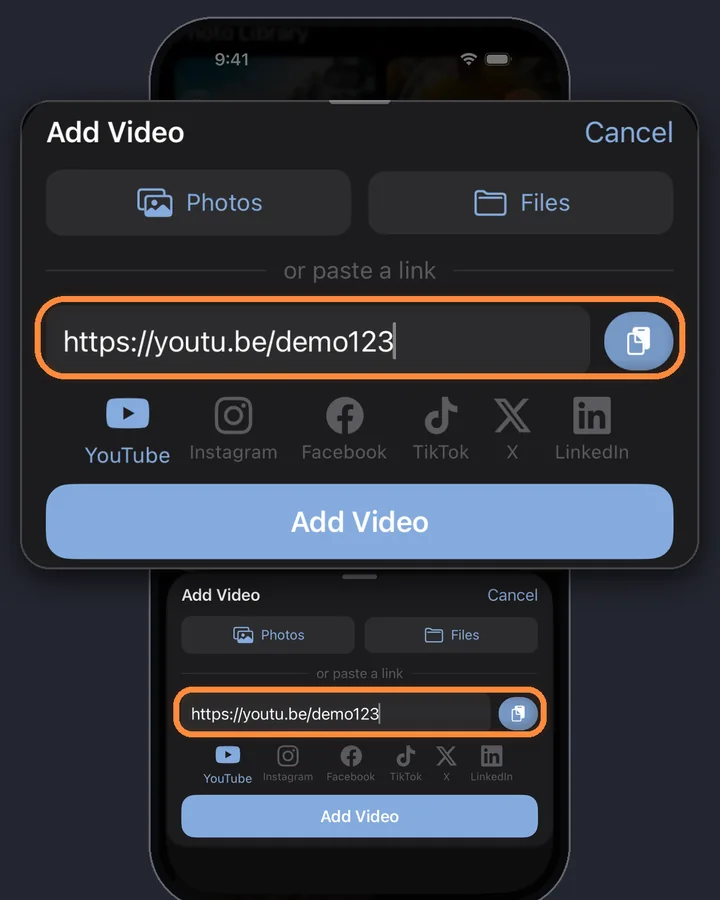
Add the video
Copy the video's link, tap + in your MarkerShelf Library and paste it in the Add Video sheet. Sharing from the YouTube app to MarkerShelf works too.
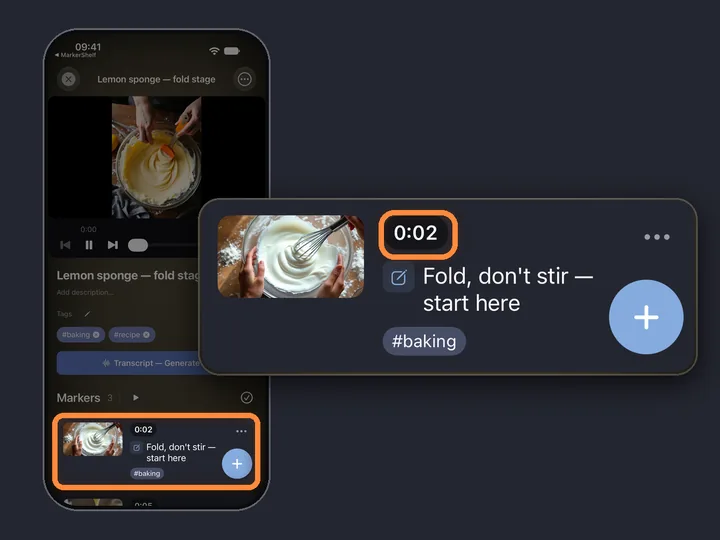
0:02Step 2 of 4
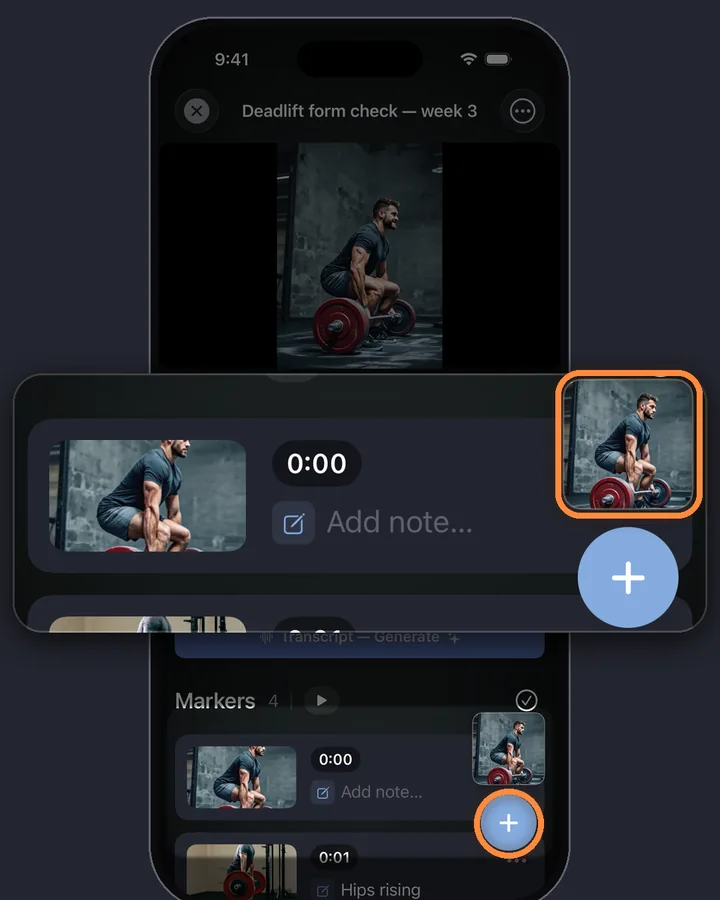
Tap + at the moment you want to note
Watch as usual. When something is worth a note, tap the round + button. MarkerShelf saves a marker at that second straight away, with a screenshot, and the video keeps playing.
0:03Step 3 of 4
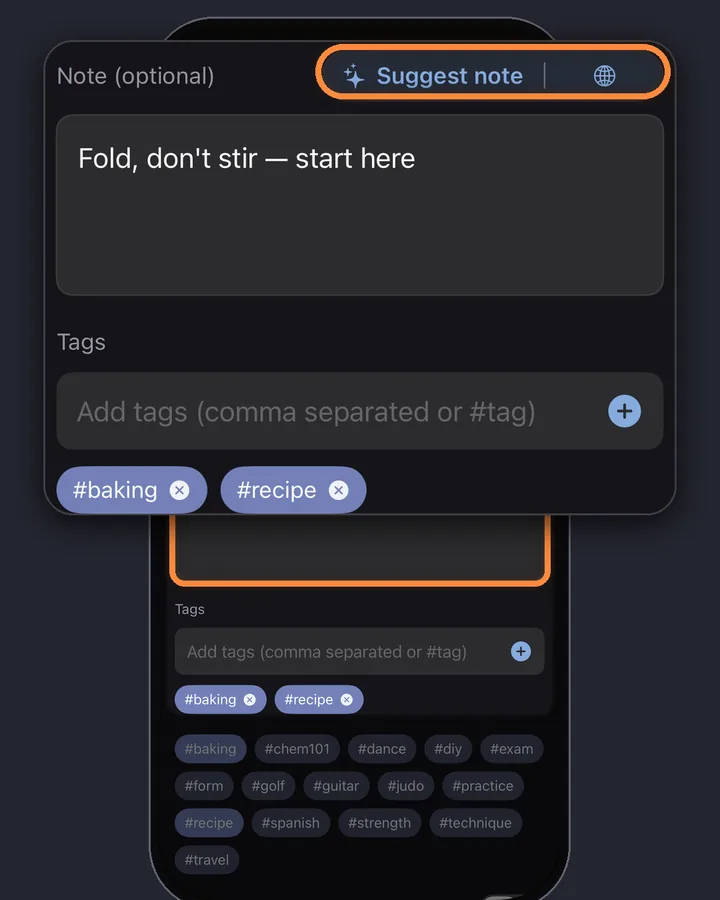
Write the note and add tags
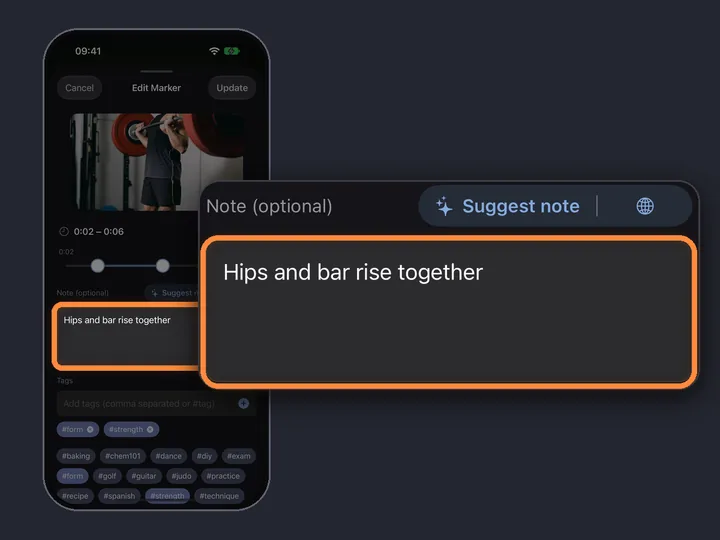
Tap the small preview that pops up above + to open the marker editor, type the note and add tags (#technique, #todo). With Pro, Suggest note drafts the note from what is said at that moment, and you can edit it before saving.
0:04Step 4 of 4
Review your notes in order
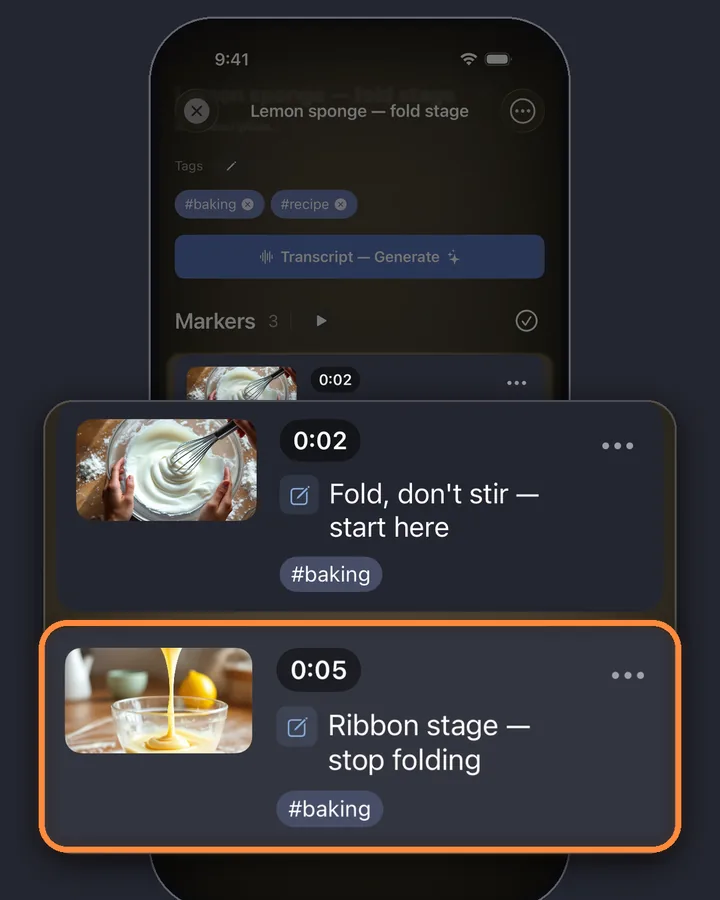
Your notes sit under the video in time order, each with its time and screenshot. Tap one and the video jumps to that second, so reviewing is a matter of reading down the list.
MarkerShelf for iPhone and iPad
Never lose a moment in a video again.
Save a note at the exact second of a video and jump back to it in one tap, for YouTube, TikTok, Instagram, Facebook, X and LinkedIn.
Free to start. No account needed.

Three ways to take notes on YouTube videos
Whatever you use, write each note next to its time. A note without a time sends you scrubbing through the video later.
1. Pen and paper, with the time
Pause, write the time in the margin (12:40) and a short note. It's free, and writing by hand helps you remember. The catch: going back means typing the time into the player yourself, and paper notes can't be searched.
2. A notes app plus timestamp links
Keep a note per video in Apple Notes, Notion or Obsidian and paste a link to the moment next to each note. A YouTube link with t= opens at that second; our free YouTube timestamp link generator makes them. It works, but switching between YouTube and the notes app for every note gets tiring.
3. A video notes app
An app that plays the video and saves notes at the current second removes the switching. You tap once, type the note, and the time, the link back and often a screenshot are saved for you. That's what MarkerShelf does on iPhone and iPad.
Pro
Use the transcript and summary as the base
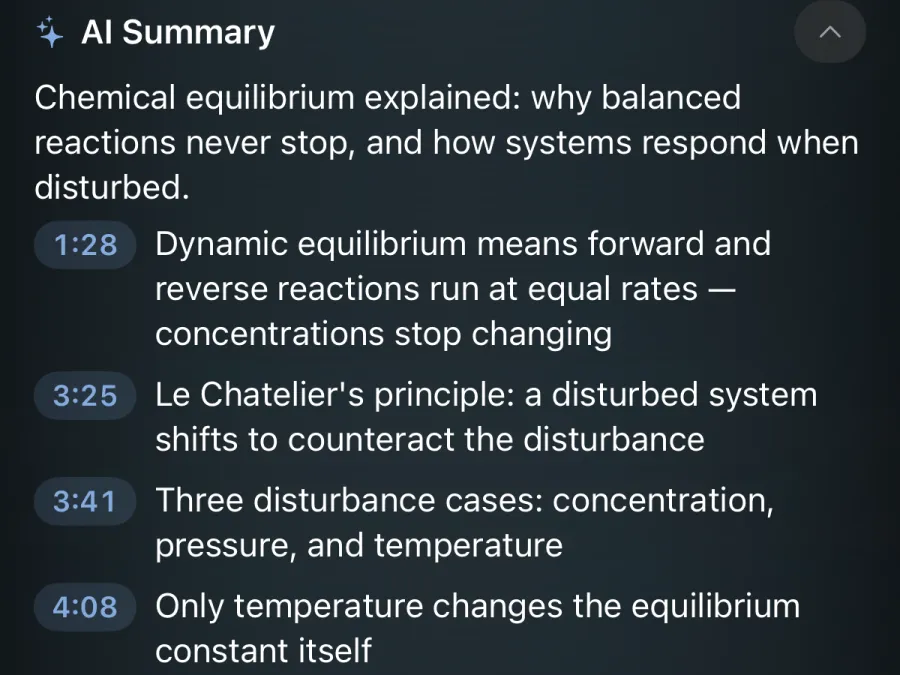
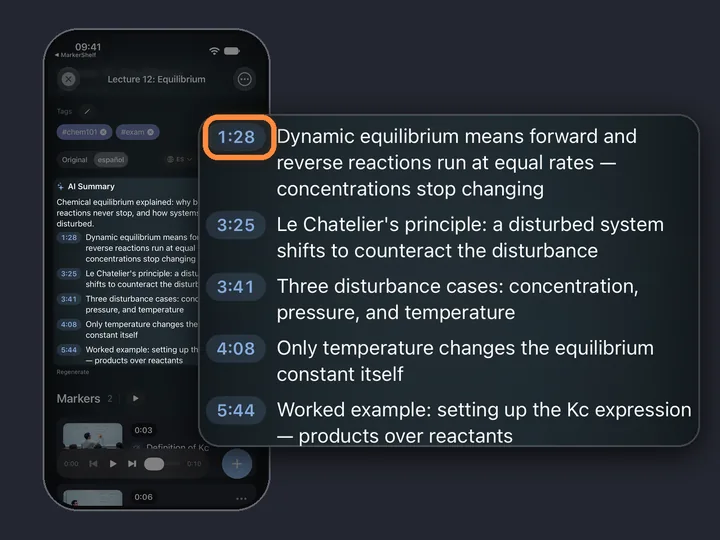
For long videos, start from the text. With Pro, MarkerShelf makes a transcript with timestamps and an AI summary of 3 to 6 timestamped points: skim it, jump to the points that matter and put your own notes there.
Keep notes from many videos organized
Notes are only useful if you can find them again next month.
- Tags: one tag per topic (#chords, #recipe, #exam), then filter by tag. Free has 5 tags; paid plans have no tag limit.
- Collections: group videos and markers by project or course. Free and Marker include 1 collection of your own; Pro has no limit.
- Search: find notes and tags across every video.

Export notes to Notion, Obsidian or Notes
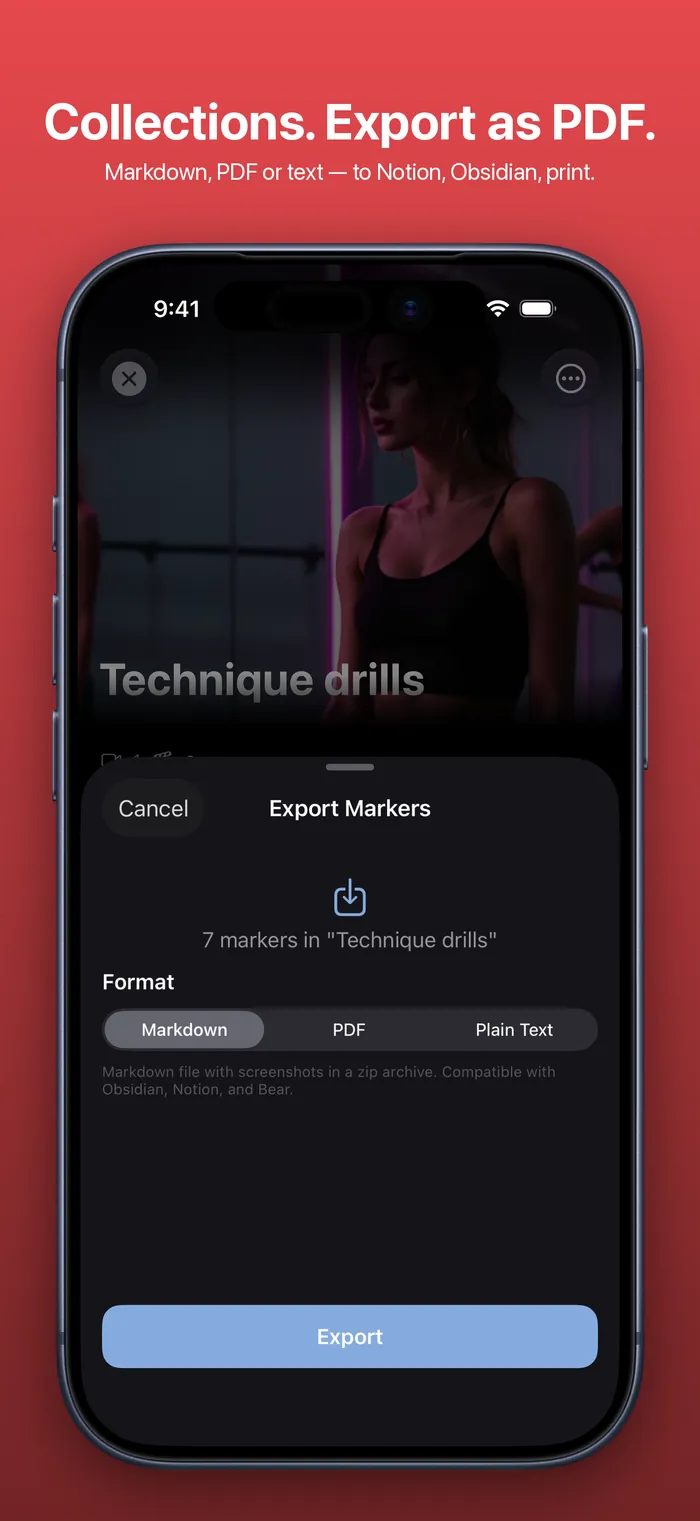
When you want your notes outside the app, export the markers of a video or a collection with their times and notes.
- Markdown (Pro): with the marker screenshots, ready for Obsidian, Notion or Bear.
- PDF (Pro): to print or share.
- Plain text (Marker plan): to paste anywhere.
YouTube links in the export open the video at each note's second. Exports contain your markers and notes, not the transcript.
Tips for better video notes
Taking notes on lectures? Recorded classes have their own workflow: exam markers, a collection per course and search across lectures. See how to turn lecture videos into notes.
- Note the why, not just the what: “Fold, don't stir: keeps the air in” beats “folding”.
- Keep each note to one idea. A new idea gets a new marker.
- Use the same few tags everywhere, one per topic, so filtering stays useful.
- Review your markers within a day while the video is still fresh, and delete the ones you don't need.
Pricing
Start free. Upgrade when the free limits get in your way.
Free
$0
No account needed
- 10 videos
- 3 markers per video
- 5 tags
- 1 collection
- Search titles, notes & tags
- Transcript, summary & translation previews
Marker
$2.99/mo
Unlimited bookmarking
- Unlimited videos
- Unlimited point markers
- Unlimited tags
- 1 collection
- Text export
- 3 range markers per video
Pro
Annual
Save 40%$4.17/mo
$83.88 $49.99/yr billed annually
or $6.99/mo monthly (no trial)
- Everything in Marker
- Unlimited range markers, loops & collections
- Full transcripts, AI summary, word search & translation
- PDF, Markdown & text export
App Store prices for United States, checked Oct 20, 2026.
Questions
About video notes in MarkerShelf.
What's the best way to take notes on YouTube videos?
Tie every note to a time. On paper, write the time next to each note; in a notes app, save a timestamp link. A video notes app such as MarkerShelf does it for you: tap + at the moment, and your note is stored with that second and a screenshot.
Is there an app that takes notes on YouTube videos?
Yes. MarkerShelf for iPhone and iPad saves notes at the exact second of YouTube, TikTok, Instagram, Facebook, X and LinkedIn videos. It's free for 10 videos with 3 markers each; the Marker plan removes those limits.
Can AI write the notes for me?
Partly. With Pro, MarkerShelf writes a summary of the video (a TL;DR and 3 to 6 timestamped points) and can suggest a note for each marker from what is said there. You choose which moments to keep and can edit every suggestion.
Can I export my notes?
Yes. Export the markers of a video or a collection, with times and notes, as plain text with the Marker plan, or as PDF and Markdown with Pro. Markdown works with Obsidian, Notion and Bear.
Does it work for TikTok and Instagram videos?
Yes. Notes work the same way on TikTok, Instagram, Facebook, X and LinkedIn videos, and on your own videos from Photos or Files. Timestamp links in exports open at the second for YouTube; for other platforms the time is listed next to the link.
Take your next note at the exact second.
Take notes at the exact second of YouTube, TikTok, Instagram, Facebook, X and LinkedIn videos, and jump back to them in one tap.