Turn on subtitles for videos without captions
Made from the speech. Shown over the video. In your language with Pro.
iOS app for iPhone and iPad. Free preview: the first 30 seconds of subtitles for online videos. Full subtitles and translation with Pro.
Get subtitles in three steps
-
0:01Step 1 of 3
Share the video to MarkerShelf
In TikTok, Instagram, Facebook, YouTube, X or LinkedIn, tap Share and pick MarkerShelf in the share sheet. Or copy the link, tap + in your MarkerShelf Library and paste it in the Add Video sheet.
Your own videos work too. Add a video from Photos or Files, and MarkerShelf transcribes it on your iPhone.
-
0:02Step 2 of 3
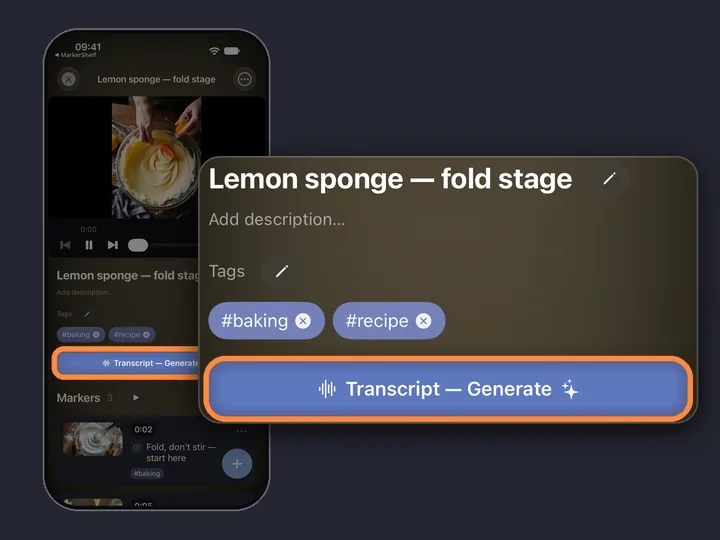
Tap Transcript — Generate
Open the video in MarkerShelf and tap Transcript — Generate. When the video has no captions, MarkerShelf writes the text from what is said in it.
Where the text comes from. TikTok, Instagram and Facebook videos are always transcribed from the audio. YouTube, X and LinkedIn videos use their own captions when they have them.
-
0:03Step 3 of 3
Tap the captions button
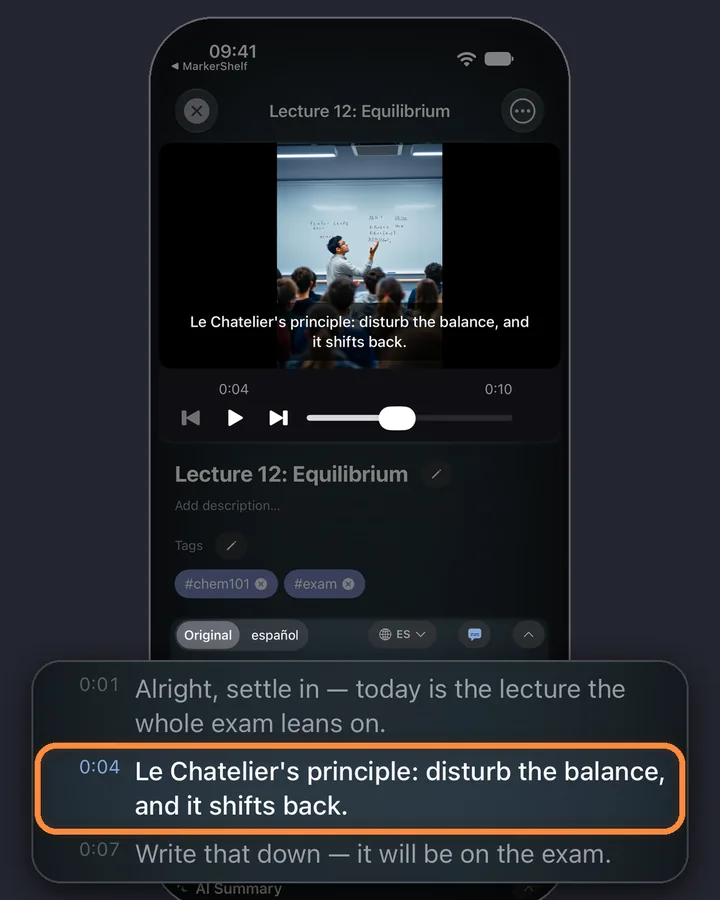
A subtitle line shows over the video and follows the speech as it plays. Subtitles are off until you turn them on, and each video keeps its own setting.
In the way? Long-press the subtitle line, then drag it anywhere on the video. MarkerShelf keeps that spot for the video.
What the subtitles look like
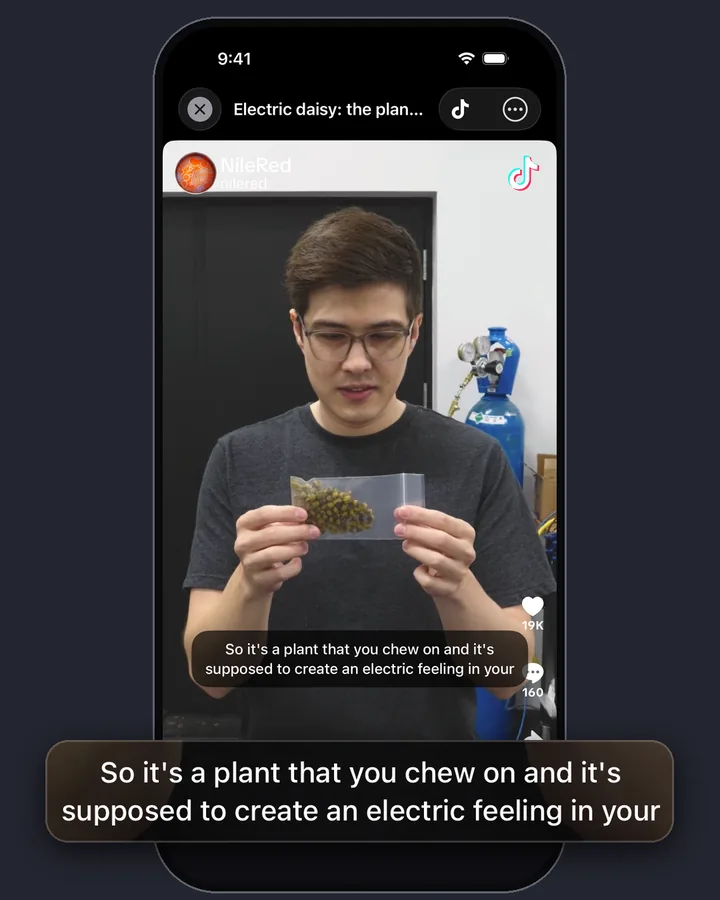
This is a NileRed TikTok about the electric daisy, played in MarkerShelf. The subtitle line sits over the video and changes with the speech. The full transcript is under the player, and you can tap any line to jump there.
Subtitles in your language
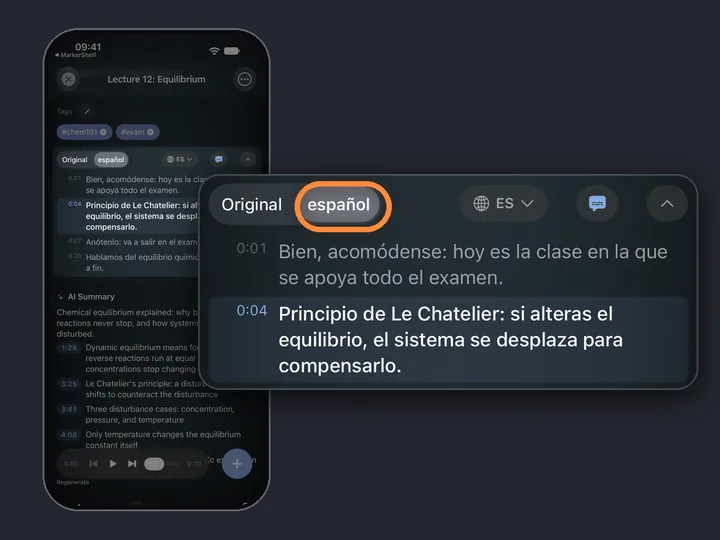
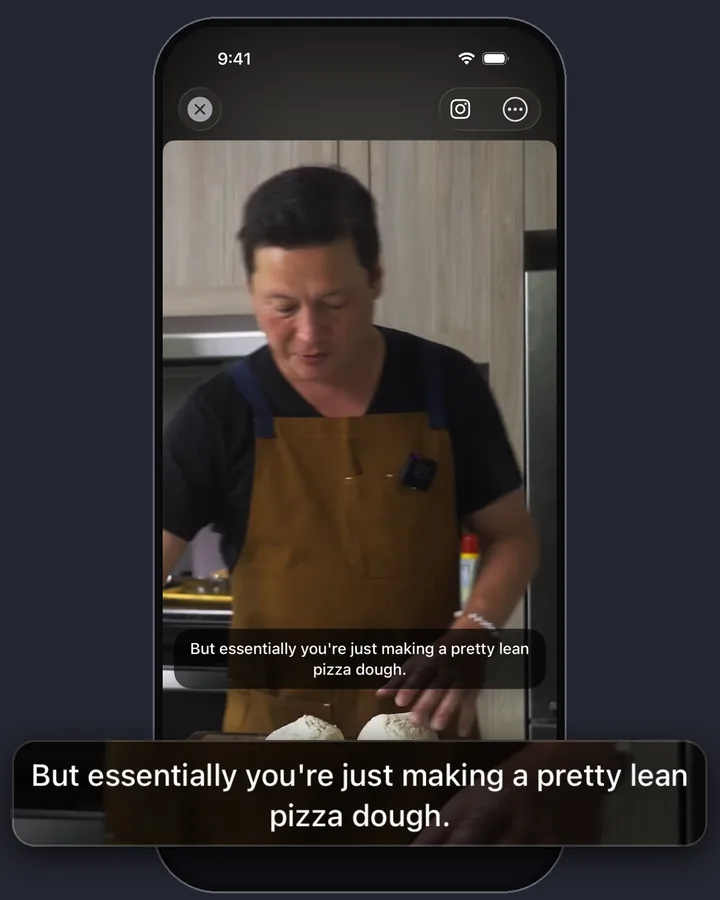
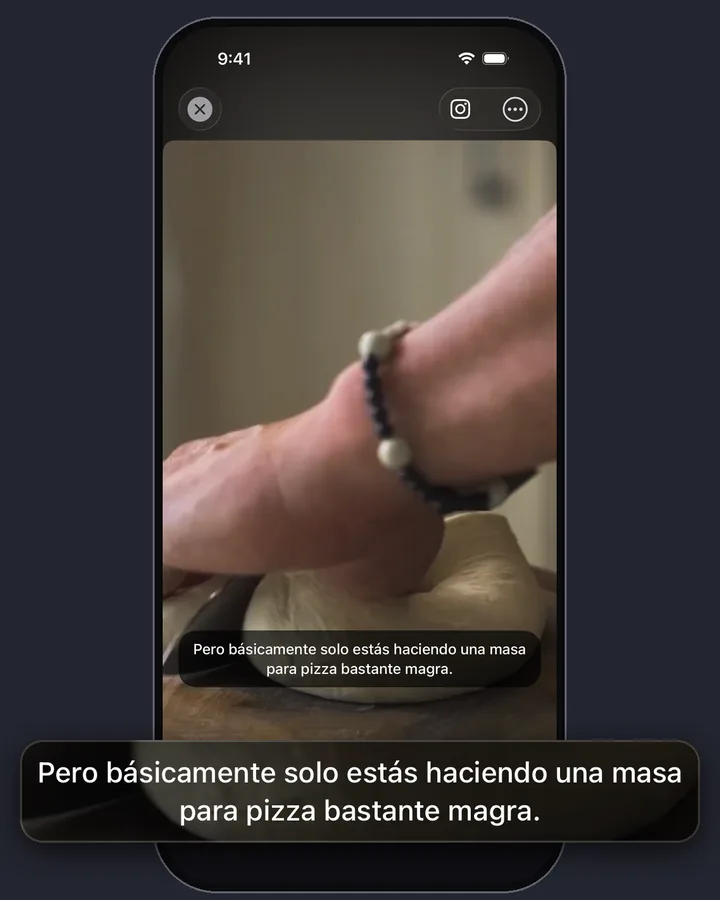
Tap the globe above the transcript and pick a language. Then switch between Original and the translation, and the subtitles switch with it. Translation is part of Pro. You read it; the voice stays the same. Below: a Kenji López-Alt Reel about flatbread dough, in English and in Spanish.
Questions
About subtitles in MarkerShelf.
How do I get subtitles on a TikTok that has no captions?
TikTok shows captions only when the creator turned them on. Share the TikTok to MarkerShelf and tap Transcript — Generate. MarkerShelf writes the text from the audio. Then tap the captions button to see it as subtitles over the video.
Can I see subtitles on Instagram Reels without captions?
Yes. MarkerShelf makes the text from the Reel's audio, so the creator's captions don't matter. Share the Reel to MarkerShelf, generate the transcript and tap the captions button. This works for public Reels.
Can I translate a TikTok or Reel into English?
Yes, with Pro. Tap the globe, pick English or another language, and switch between Original and the translation. The subtitles show the language you picked. You read the translation; the voice is not dubbed.
Does it add subtitles to the video file?
No. The subtitles show only in MarkerShelf's player. Nothing is added to the video, and there is no subtitle file to export. MarkerShelf is not a caption editor: to put captions into a video you post, use a video editor.
Which videos work?
Public videos from TikTok, Instagram, Facebook, YouTube, X and LinkedIn, and your own videos from Photos and Files. Private posts, posts that need a sign-in and live streams don't work.
Can I move the subtitles?
Yes. Long-press the subtitle line, then drag it anywhere on the video. MarkerShelf keeps that spot for the video.
Is it free?
The Free and Marker plans show a preview: for online videos, the first 30 seconds of subtitles, then “Unlock full transcript with Pro”. Pro unlocks the full subtitles, the full transcript and translation: $6.99 a month, or $49.99 a year with a 7-day free trial on the yearly plan.
Good to know
- Subtitles, not a caption editor. They show in MarkerShelf's player while you watch. Nothing is added to the video file, and there is no subtitle file to export.
- Where the text comes from. TikTok, Instagram and Facebook videos are always transcribed from the audio. YouTube, X and LinkedIn videos use their own captions when they have them, and the audio when they don't. Your own videos are transcribed on your iPhone.
- Off until you turn it on. Tap the captions button on a video to show subtitles. Each video keeps its own setting.
- Read every word. The full transcript sits under the player, with a time on each line. See how to transcribe a TikTok video or how to get an Instagram Reel transcript.
- A YouTube video in another language? See how to translate a YouTube video. For the gist instead of every word, see the AI video summarizer.
- Check names and numbers. Text made from speech can get a name or a number wrong. Listen to that part before you rely on it.
- iPhone and iPad today. MarkerShelf needs iOS 26 or later. An Android app is in development.

Never lose a moment in a video again.
Share your next TikTok or Reel and watch it with subtitles, on iPhone and iPad.